Checkout Engineering
Safari Autofill Breaking Your Checkout? Find and Fix It
A filled-in checkout form can still refuse to submit in Safari. Here is why autofill leaves validation stale, and how to debug, fix, and test it.
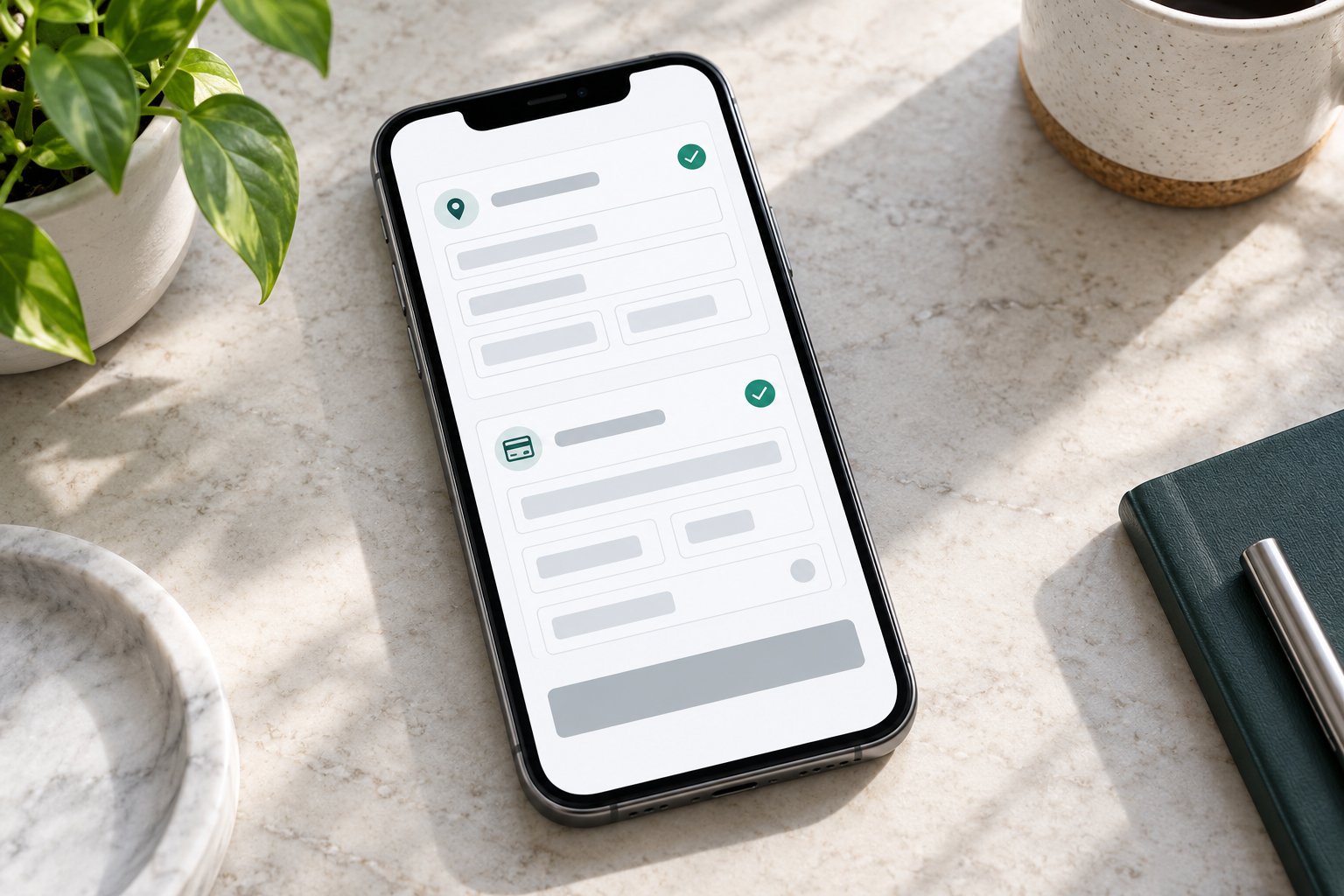
You open a checkout on your phone. Safari has filled in your name, address, and postcode. Everything looks finished. You tap the order button and nothing happens. Or the button stays grey no matter what you do.
If you run a store, a booking flow, or any page that takes payment, this is one of the worst bugs you can ship. It does not throw an error. The customer just sees a complete form that refuses to work. Most of them will not email you about it. They will reload once, try another card, and leave.
In your analytics that looks like normal drop-off: they reached the payment step and did not pay. So the team rewrites the button copy, adds trust badges, and cuts a step from the flow. Sometimes that helps. Sometimes the real problem sits lower down, in the gap between what the input shows and what your app believes is in it.
This guide explains how that gap opens up with Safari autofill, how to reproduce it, and how to fix your checkout form so it submits reliably however the fields were filled.
The short version:
- Autofill can change what an input displays without your app updating its own state.
- A submit button that depends on that stale state stays disabled, or the form silently does nothing.
- The fix is to read the real values and validate again at submit time, and to treat browser events as hints, not as the source of truth.
- Reproduce with saved addresses on real devices, and track submit attempts that never became a request.
Why a filled checkout can still be broken
Every field in a modern checkout has two values. One is what the browser shows in the input. The other is what your application has stored in its own state. When someone types, the browser fires events, your handlers run, state updates, validation runs, and the button unlocks. The two values stay in sync because every keystroke drags them together.
Autofill does not type. It fills several fields at once, and the events your code expects may arrive in a different order, arrive late, or never arrive for some fields. The postcode can be on screen while your state still says it is empty. A dependent field, like a region dropdown that changes with the country, can be left holding an old value. The form looks green to the customer and red to your code.
To be fair to Safari, this is rarely just a browser bug. It usually takes both sides: a browser that fills fields in a slightly unexpected way, and an app that assumes a keystroke happened. Typical culprits are a controlled React input that never picks up the filled value, a validation hook that only listens for key events, a payment widget whose "complete" callback never reaches the parent form, and a postcode lookup that overwrites what autofill just entered.
Picture a restaurant's online ordering page. A regular comes back, taps their saved address, and expects to be done in ten seconds. If the delivery-fee check never runs, they never see a total and the order never goes through. That regular is exactly the customer you least want to lose.
How autofill slips past your event handlers
Browser behavior here depends on the browser version, the field type, and where the autofill data comes from. Public WebKit bug reports describe cases where autofill did not fire an expected change event, and others where Safari's Password AutoFill did not trigger beforeinput. You can read the change event report and the beforeinput report. They do not prove your checkout is affected today. They do show that "the right event will always fire" is an assumption to test, not to trust.
That shapes the fix. A Safari-specific timeout hides one symptom and creates another. Polling every field forever is not validation. A better rule: events tell your UI when to refresh, and they are never the only source of truth about what is in the form.
Also work out who owns each field. Name and address inputs live in your page, so you can read them. Saved cards are different. Many payment providers render card fields inside a cross-origin iframe on purpose, so your page cannot read them and should not try. For those fields, the provider's documented completion event is the contract. Map the ownership of every field before you change any code.
Reproduce it on a real device
Do not start with a clean, hand-typed test order. Start with the journey that is failing:
- Save a test address in Safari and complete one sandbox order.
- Come back in a fresh session and pick the saved address from the autofill suggestion.
- Repeat with a saved card in your provider's sandbox, if it supports one.
- Run everything on an iPhone and a Mac if you have visitors on both.
- Try an address that fills every field, one with optional fields blank, an international address, and one deliberately invalid value.
A typed order is a good control, but it will not find this bug. The saved-data path is the one that fails.
Add temporary logging that records the field name, the event type, whether the field is valid, and what your component state holds. Never log card numbers, security codes, or full addresses. The question you want answered is simple: when the browser changed the visible input, did your form model change too?
Record your screen while you test and note the Safari and iOS versions. A recording shows a disabled button that a server log can never see, and the console trace shows the state change the recording hides. Together they separate an event-order bug from a card decline or a customer who simply changed their mind.
Trace the validation chain
Follow one field through every layer: browser value, component state, field validation, form validity, button state, submit handler, request payload, server response. After an autofill, write down what each layer believes.
- The browser shows a ZIP code but your state is empty: you have a sync gap.
- Both agree but the button stays disabled: look at the rule that combines field validity.
- The button enables but no request starts: the bug is further down, in the submit handler or the payment step.
This beats reading the checkout component top to bottom and guessing. It also protects you from the tempting wrong fix, which is loosening validation until the button turns on. Client rules should never be stricter than the server's, but they still have to check required fields properly. The job is to make the rules agree and keep the state current.
Check derived dependencies as well. The country may decide whether a region is required. Billing may copy from shipping only when a box is ticked. A card-brand detector may be waiting for a keystroke. One field can look complete while a dependent field is still logically empty.
The fix: validate on submit, not on keystrokes
Treat the moment of submission as the authority. When the customer taps the button, read the values that are in the form right now, run the full validation again, and only then send the request. Let the server and the payment provider make the final decision.
form.addEventListener("submit", function (event) {
  event.preventDefault();

  // Read what is in the form right now, not what state remembers
  const values = Object.fromEntries(new FormData(form));
  const errors = validateCheckout(values); // same rules the server enforces

  if (Object.keys(errors).length) {
    showErrors(errors);
    form.querySelector("[aria-invalid='true']")?.focus();
    return;
  }

  submitOrder(values);
});
Card fields rendered by a payment provider will not appear in FormData. For those, use the provider's own API and callbacks. Three habits make the whole approach hold up:
- Use native inputs with proper names, types, and autocomplete tokens. The
autocompleteattribute tells the browser whether a field is a name, an address line, or a postal code. MDN's autocomplete reference lists the values. Native semantics cooperate with browser assistance far better than custom text boxes with missing names. - Do not make the button the only gate. Leave it enabled and explain what is missing when someone taps it. A grey button with no explanation is exactly the failure this article is about, and it hurts accessibility too.
- Trust the payment provider's callbacks for card fields. Do not guess that a card is valid because a masked value is on screen, and never copy card contents into your state, analytics, or error messages.
If you use controlled inputs, make sure every path updates the same state: typing, paste, browser autofill, password managers, and address lookups. Check how your validation library reads values and when it revalidates. And skip the global "enable after any interaction" hack. It swaps a stuck button for a button that lies.
When a submit fails, focus the first invalid field and say what is wrong in plain language. If the payment provider is still loading, say that too.
Track the drop-off nobody sees
Most checkout funnels jump from "reached payment" to "order placed". That hides the interesting part. Add coarse events: checkout rendered, required fields complete, submit attempted, request started, provider outcome received, order confirmed. None of them needs the customer's actual data.
The number to watch is submit attempts that never produced a request. A customer who cannot unlock the button never reaches your payment provider, so the provider's logs show nothing. A declined card and a dead click are different problems and should be counted separately.
Record a coarse reason such as "required fields incomplete" or "provider not ready" instead of serializing the form. Include browser family, major version, device class, and release, where your privacy policy allows it. Without that, a Safari-only gap disappears into a sitewide average.
Treat what you find as a lead, not a verdict. A lower completion rate in one browser can come from device mix, traffic source, or price. Confirm it with a reproducible test before you redesign anything.
Test it before you ship
Put saved addresses and saved payment methods on your release checklist:
- Safari on iOS and macOS, plus at least one Chromium browser
- A fully filled address, a partial one, and an invalid one
- Sandbox payments with every method you support
- A double tap, to confirm it never creates two orders
- A slow provider response, to confirm the page shows progress
- A refresh after payment, to confirm the confirmed state survives
Run the list again whenever you update the checkout framework, validation library, or payment SDK. A payment flow is a chain of separately updated software, and an event order that worked last quarter is not guaranteed this one.
After release, watch more than conversion. Look at payment errors, duplicate submissions, support tickets, and incomplete-field rates. A conversion jump that comes from weaker validation is a regression wearing a good-looking chart.
The goal is a checkout that can explain why it says "ready": current values, current validation, a ready payment method, and a submit path that checks again. Safari autofill is a handy stress test for that, and so is every password manager, address picker, and assistive tool your customers use.
Checkouts that quietly lose orders are exactly what we dig into at UmidWeb. If you want a second pair of eyes on yours, email [email protected].
Web Performance
Slow Checkout Page? Audit the Third-Party Scripts First
Analytics, chat, reviews, and A/B tests all compete with your payment form. Here is how to audit checkout scripts without losing the data you need.
7 min read
Read article
Product Strategy
How to Build an MVP Without Over-Engineering It
Custom auth, role matrices, and microservices can eat the weeks you need to learn if anyone will pay. Here is how to keep an MVP small, safe, and ready to grow.
7 min read
Read article